Image Results#
Info
Benchmark results for image similarity algorithms.
Overview#
| Algorithm | Dataset | Threshold | Recall | Precision | F1-Score |
|---|---|---|---|---|---|
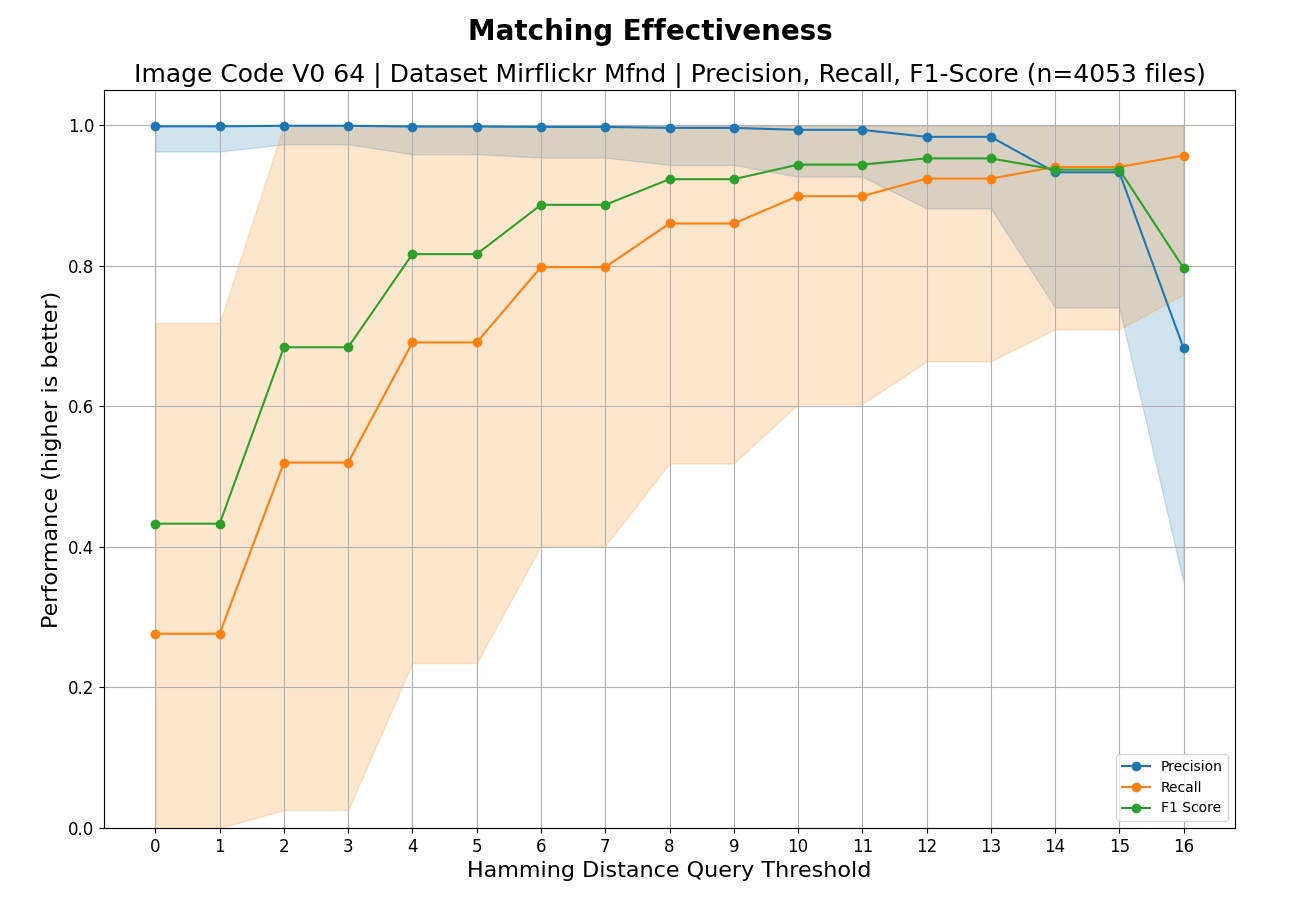
| IMAGE-CODE-64 | MIRFLICKR-MFND | 12 | 0.92 | 0.98 | 0.95 |
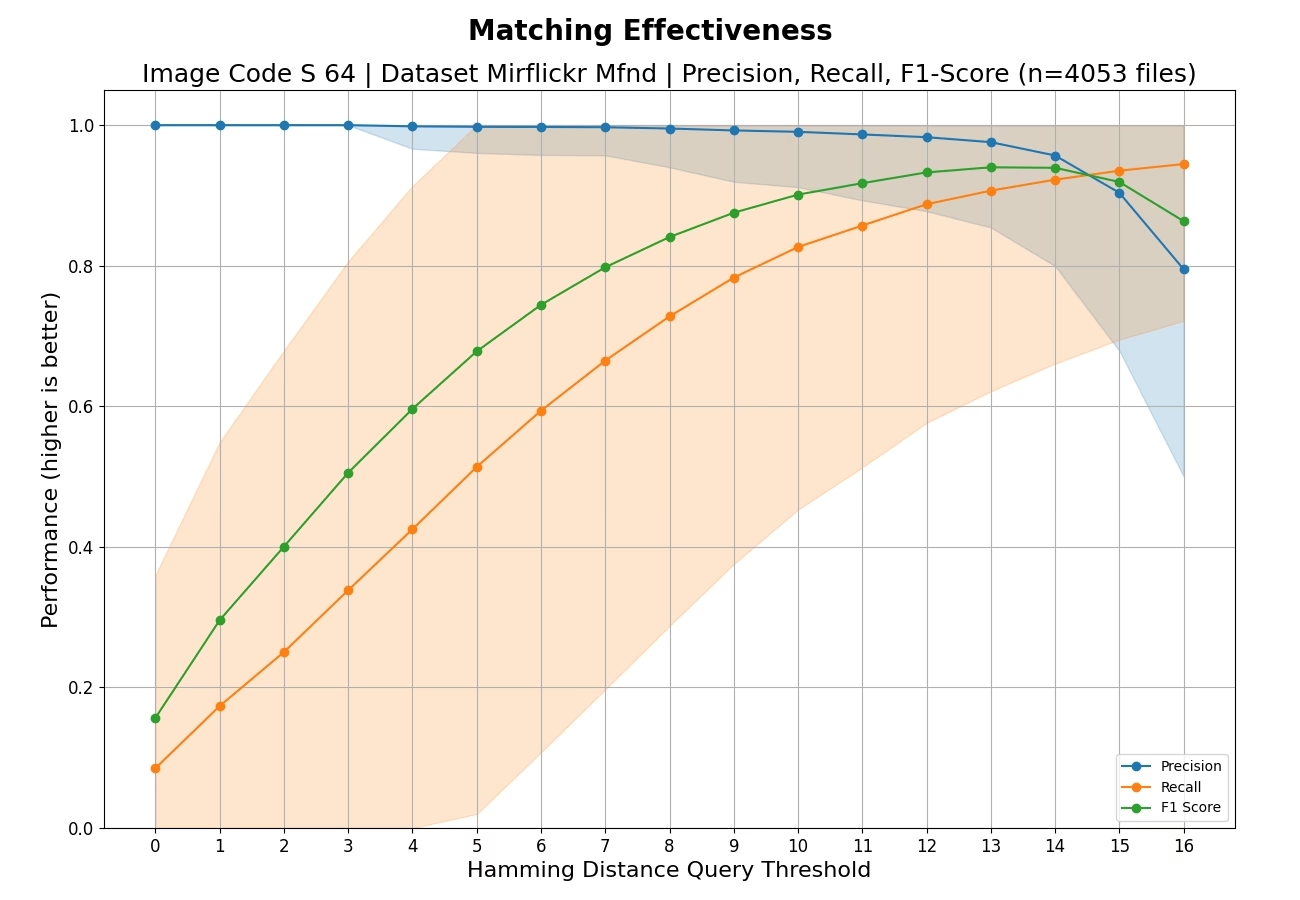
| IMAGE-CODE-S-64 | MIRFLICKR-MFND | 13 | 0.91 | 0.98 | 0.94 |
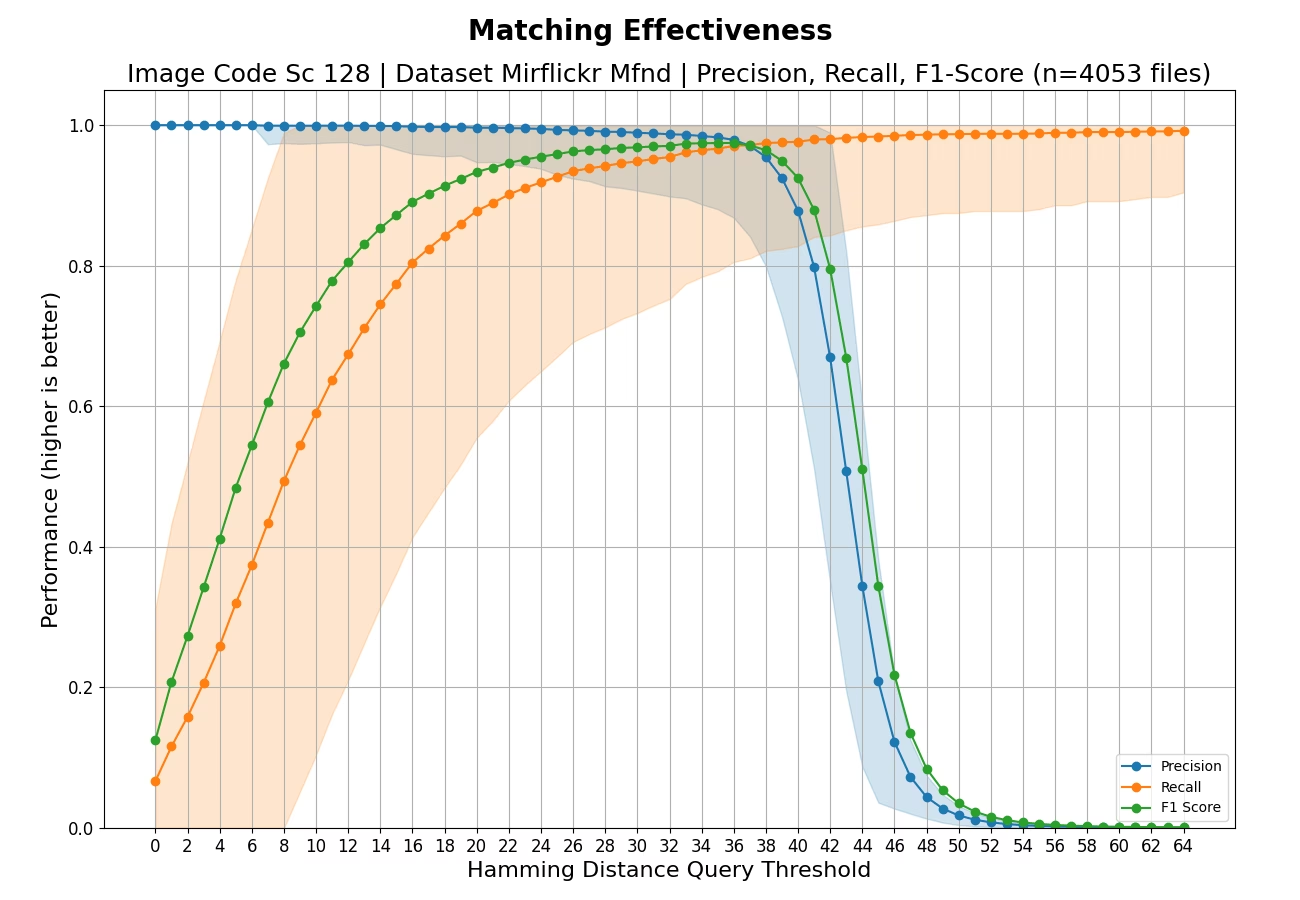
| IMAGE-CODE-SC-128 | MIRFLICKR-MFND | 36 | 0.97 | 0.98 | 0.97 |
Image similarity algorithms detect visually similar images including crops, resizes, color adjustments, and format conversions.
IMAGE-CODE-64#
Evaluation against dataset MIRFLICKR-MFND
Effectiveness#
Understanding the Effectiveness Chart
This chart shows how well the algorithm finds matching files (like duplicates or near-duplicates) without making mistakes.
What the lines mean:
- Recall (orange): "Did we find all the matches?" A value of 1.0 means every match was found. Lower values mean some matches were missed.
- Precision (blue): "Are our matches correct?" A value of 1.0 means every reported match was real. Lower values mean some reported matches were wrong (false alarms).
- F1-Score (green): The overall balance between Recall and Precision. Higher is better. A perfect score of 1.0 means all matches were found with no false alarms.
What the shaded bands mean:
The colored bands around the Precision and Recall lines show the variation across different test queries. Narrow bands indicate consistent performance; wide bands suggest the algorithm works better on some files than others.
How to read the X-axis (threshold):
The threshold controls how "similar" two files must be to count as a match. Lower thresholds (left side) are stricter - only very similar files match. Higher thresholds (right side) are more lenient - somewhat different files can still match.
- Moving right typically increases Recall (find more matches) but decreases Precision (more false alarms).
- The best threshold depends on your use case: use lower thresholds when false alarms are costly, higher thresholds when missing matches is costly.
What makes a good result?
Look for the point where F1-Score peaks - this represents the best balance. An ideal algorithm would show high Recall and high Precision across all thresholds (lines staying near 1.0).
Distribution#
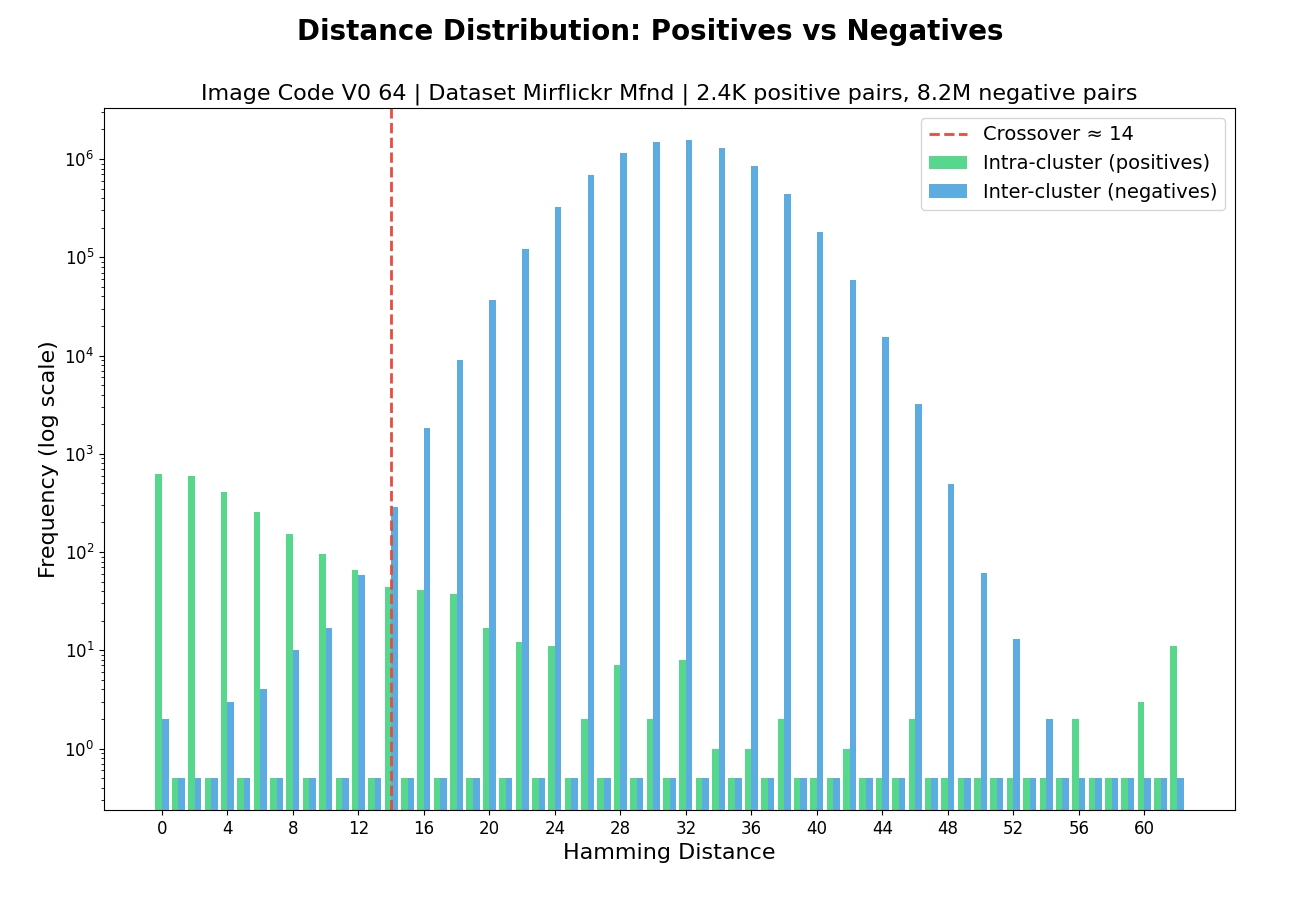
Understanding the Distribution Chart
This chart shows how the algorithm distinguishes between files that should match (duplicates) and files that should not match (different content).
What the bars mean:
- Green bars (Intra-cluster/Positives): Distances between files that ARE duplicates of each other. These should ideally be small (clustered on the left side).
- Blue bars (Inter-cluster/Negatives): Distances between files that are NOT duplicates. These should ideally be large (clustered on the right side).
Why separation matters:
A good algorithm creates clear separation between green and blue bars - duplicates have small distances, non-duplicates have large distances. This makes it easy to set a threshold that correctly identifies matches.
The crossover point (red dashed line):
If shown, this marks where the distributions overlap - the distance at which you start seeing more non-duplicates than duplicates. Setting your matching threshold near this point balances finding matches against avoiding false alarms.
What makes a good result?
- Green bars concentrated on the left (low distances for duplicates)
- Blue bars concentrated on the right (high distances for non-duplicates)
- Minimal overlap between the two distributions
- A late crossover point (further right is better)
Performance#
Throughput Statistics
| Metric | Value |
|---|---|
| Minimum | 0.2687 MB/s |
| Maximum | 3.5206 MB/s |
| Mean | 0.7455 MB/s |
| Median | 0.6951 MB/s |
IMAGE-CODE-S-64#
Evaluation against dataset MIRFLICKR-MFND
Effectiveness#
Understanding the Effectiveness Chart
This chart shows how well the algorithm finds matching files (like duplicates or near-duplicates) without making mistakes.
What the lines mean:
- Recall (orange): "Did we find all the matches?" A value of 1.0 means every match was found. Lower values mean some matches were missed.
- Precision (blue): "Are our matches correct?" A value of 1.0 means every reported match was real. Lower values mean some reported matches were wrong (false alarms).
- F1-Score (green): The overall balance between Recall and Precision. Higher is better. A perfect score of 1.0 means all matches were found with no false alarms.
What the shaded bands mean:
The colored bands around the Precision and Recall lines show the variation across different test queries. Narrow bands indicate consistent performance; wide bands suggest the algorithm works better on some files than others.
How to read the X-axis (threshold):
The threshold controls how "similar" two files must be to count as a match. Lower thresholds (left side) are stricter - only very similar files match. Higher thresholds (right side) are more lenient - somewhat different files can still match.
- Moving right typically increases Recall (find more matches) but decreases Precision (more false alarms).
- The best threshold depends on your use case: use lower thresholds when false alarms are costly, higher thresholds when missing matches is costly.
What makes a good result?
Look for the point where F1-Score peaks - this represents the best balance. An ideal algorithm would show high Recall and high Precision across all thresholds (lines staying near 1.0).
Distribution#
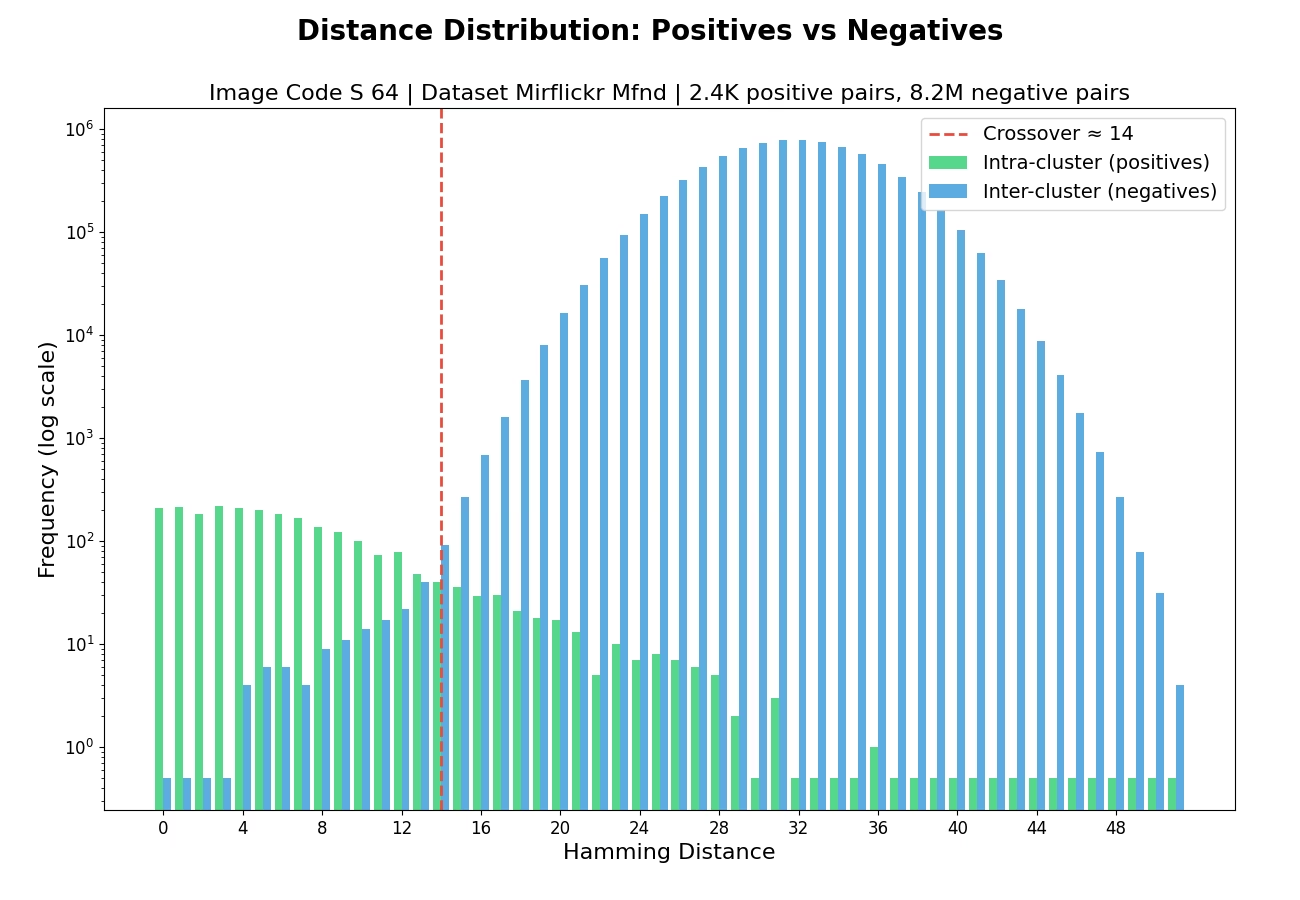
Understanding the Distribution Chart
This chart shows how the algorithm distinguishes between files that should match (duplicates) and files that should not match (different content).
What the bars mean:
- Green bars (Intra-cluster/Positives): Distances between files that ARE duplicates of each other. These should ideally be small (clustered on the left side).
- Blue bars (Inter-cluster/Negatives): Distances between files that are NOT duplicates. These should ideally be large (clustered on the right side).
Why separation matters:
A good algorithm creates clear separation between green and blue bars - duplicates have small distances, non-duplicates have large distances. This makes it easy to set a threshold that correctly identifies matches.
The crossover point (red dashed line):
If shown, this marks where the distributions overlap - the distance at which you start seeing more non-duplicates than duplicates. Setting your matching threshold near this point balances finding matches against avoiding false alarms.
What makes a good result?
- Green bars concentrated on the left (low distances for duplicates)
- Blue bars concentrated on the right (high distances for non-duplicates)
- Minimal overlap between the two distributions
- A late crossover point (further right is better)
Performance#
Throughput Statistics
| Metric | Value |
|---|---|
| Minimum | 0.0040 MB/s |
| Maximum | 0.1614 MB/s |
| Mean | 0.0340 MB/s |
| Median | 0.0308 MB/s |
IMAGE-CODE-SC-128#
Evaluation against dataset MIRFLICKR-MFND
Effectiveness#
Understanding the Effectiveness Chart
This chart shows how well the algorithm finds matching files (like duplicates or near-duplicates) without making mistakes.
What the lines mean:
- Recall (orange): "Did we find all the matches?" A value of 1.0 means every match was found. Lower values mean some matches were missed.
- Precision (blue): "Are our matches correct?" A value of 1.0 means every reported match was real. Lower values mean some reported matches were wrong (false alarms).
- F1-Score (green): The overall balance between Recall and Precision. Higher is better. A perfect score of 1.0 means all matches were found with no false alarms.
What the shaded bands mean:
The colored bands around the Precision and Recall lines show the variation across different test queries. Narrow bands indicate consistent performance; wide bands suggest the algorithm works better on some files than others.
How to read the X-axis (threshold):
The threshold controls how "similar" two files must be to count as a match. Lower thresholds (left side) are stricter - only very similar files match. Higher thresholds (right side) are more lenient - somewhat different files can still match.
- Moving right typically increases Recall (find more matches) but decreases Precision (more false alarms).
- The best threshold depends on your use case: use lower thresholds when false alarms are costly, higher thresholds when missing matches is costly.
What makes a good result?
Look for the point where F1-Score peaks - this represents the best balance. An ideal algorithm would show high Recall and high Precision across all thresholds (lines staying near 1.0).
Distribution#
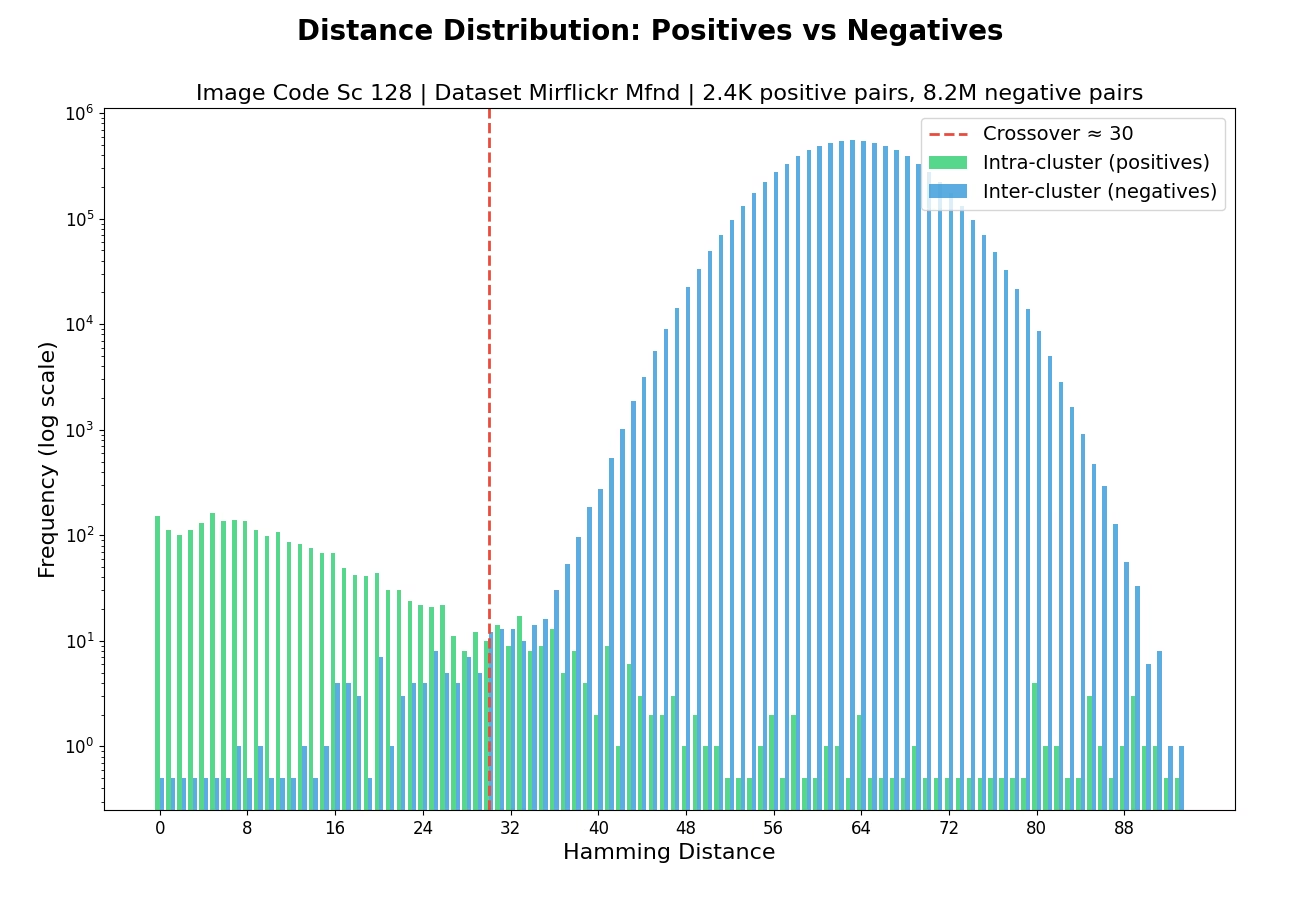
Understanding the Distribution Chart
This chart shows how the algorithm distinguishes between files that should match (duplicates) and files that should not match (different content).
What the bars mean:
- Green bars (Intra-cluster/Positives): Distances between files that ARE duplicates of each other. These should ideally be small (clustered on the left side).
- Blue bars (Inter-cluster/Negatives): Distances between files that are NOT duplicates. These should ideally be large (clustered on the right side).
Why separation matters:
A good algorithm creates clear separation between green and blue bars - duplicates have small distances, non-duplicates have large distances. This makes it easy to set a threshold that correctly identifies matches.
The crossover point (red dashed line):
If shown, this marks where the distributions overlap - the distance at which you start seeing more non-duplicates than duplicates. Setting your matching threshold near this point balances finding matches against avoiding false alarms.
What makes a good result?
- Green bars concentrated on the left (low distances for duplicates)
- Blue bars concentrated on the right (high distances for non-duplicates)
- Minimal overlap between the two distributions
- A late crossover point (further right is better)
Performance#
Throughput Statistics
| Metric | Value |
|---|---|
| Minimum | 0.0039 MB/s |
| Maximum | 0.1543 MB/s |
| Mean | 0.0324 MB/s |
| Median | 0.0295 MB/s |